Setup locally (Windows)
Warning
This guide uses a fork of cobalt. It is not using the official cobalt codebase. This fork is constantly updated in order to fix things that come up. You can see the source code here.
This guide is not official Use at your own risk.
This guide showcases how to setup your own cobalt API instance on a Windows machine. This instance runs locally on your own computer.
The benefit to running your own instance locally is cobalt will make all requests using your home internet. Most services (like YouTube) do not like requests from servers. Using your own home internet makes it seem more "trustable" allowing things to work way more often. There is also a lot less requests, so you are prone to not being blocked. They basically see you as a more real request rather than a bot one.
Requirements
- git
- Choose
Git for Windows/x64 Setup
- Choose
- Node.js
- Use the options at the top to select Windows and follow the steps it provides.
Information
When running commands, use Windows Terminal, not Command Prompt.
Install pnpm
cobalt uses pnpm. Open up Windows Terminal and run:
Clone cobalt
We need to clone cobalt's codebase. Run the commands in order below:
cd "$env:USERPROFILE\Desktop"
git clone https://github.com/zImPatrick/cobalt.git
cd cobalt/api
notepad .env
.env file. In the Notepad, copy and paste below: API_URL=http://localhost:9000/
CUSTOM_INNERTUBE_CLIENT=TV_SIMPLY
YOUTUBE_GENERATE_PO_TOKENS=1
YOUTUBE_USE_ONESIE=1
Press Ctrl+S to save, and close Notepad.
Run cobalt
In the terminal Window from the previous step, run the commands below. If you closed it, reopen Terminal and run cd "$env:USERPROFILE\Desktop"\cobalt.
cobalt API ^ω^
~~~~~~
version: 11.7.1
commit: 310e7180fcd40c29f4fbdd04476ce36524efa34d
branch: meowing.de
remote: zImPatrick/cobalt
start time: Thu, 16 Apr 2026 19:49:33 GMT
~~~~~~
url: http://localhost:9000/
port: 9000
Use it
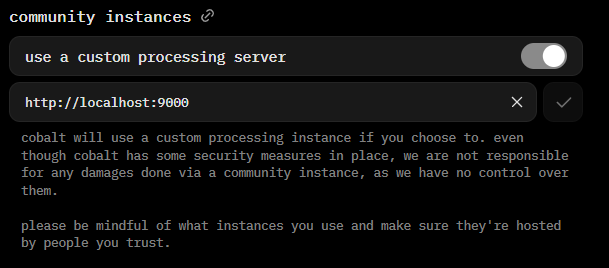
Head to cobalt.tools in your browser. Head to Settings > instances and enable use a custom processing server. In the textbox, add http://localhost:9000. Click the check mark next to it. You will see a warning, please take the time to read and understand it!
You are all set!
cobalt will only work when the Terminal window is open. If you closed it and want to start it again, run the commands below:
Make sure to re-enable "use a custom processing server" under Settings > instances on cobalt.tools.